
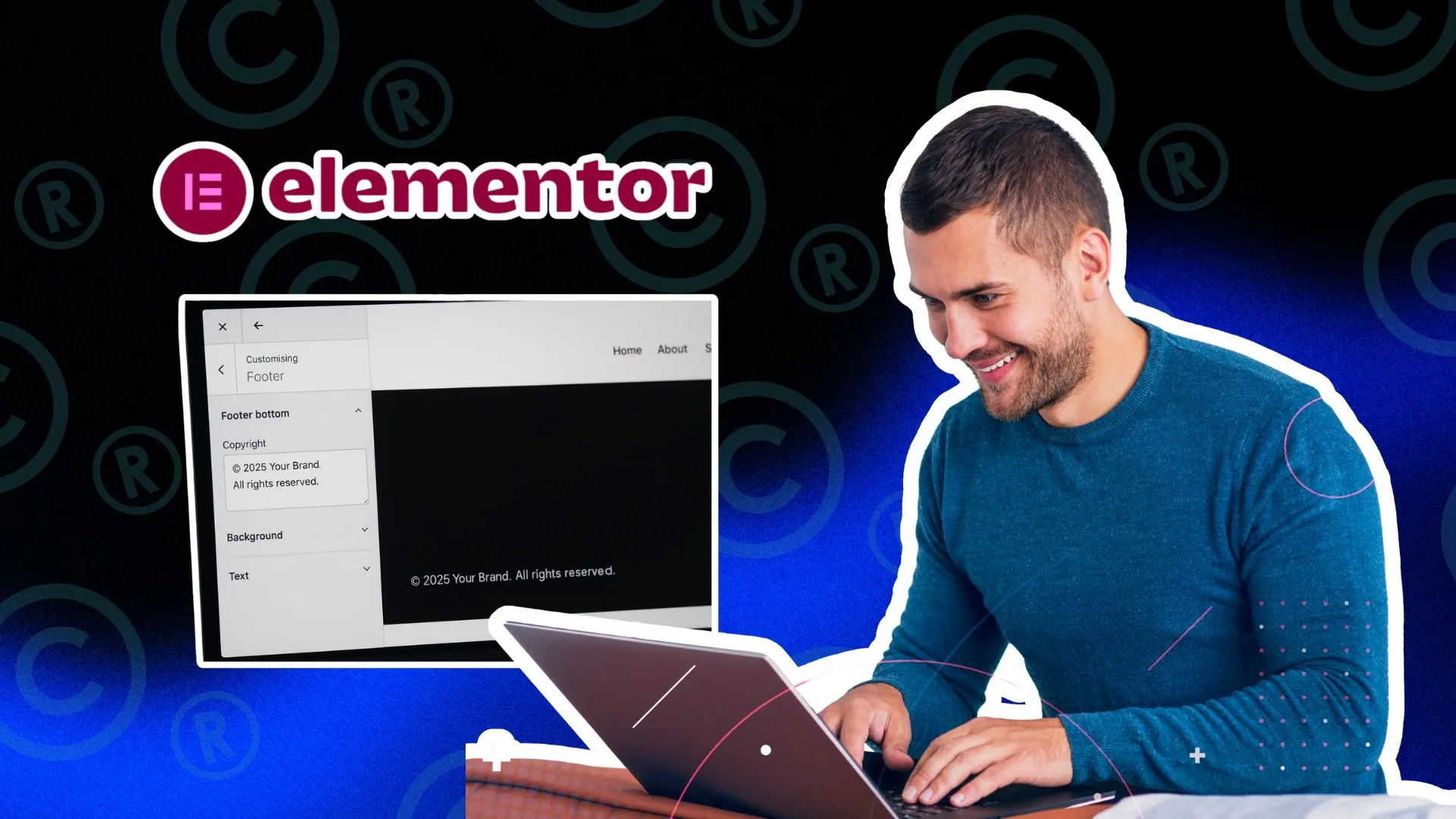
If you’re using Elementor to build your WordPress site, you’ve probably noticed that the default footer copyright often feels too generic, or worse, hard-coded into your theme.
In this guide, we’ll show you how to create a custom, dynamic copyright footer using Elementor, so you can make it look clean, professional, and automatically update every year.
At Right Padding, we use this method on all our client builds to keep branding consistent while reducing manual updates.
🎥 Prefer watching instead?
Check out the full video tutorial here:
⚙️ Step 1: Open Your Footer Template in Elementor
- In your WordPress dashboard, go to Templates → Theme Builder → Footer.
- If you don’t have a footer template yet, click Add New and select Footer.
- Name it (e.g., “Main Site Footer”) and click Create Template.
You’ll now be inside the Elementor editor, ready to design your custom footer.
🎨 Step 2: Design the Footer Layout
Here’s a simple, professional footer layout we recommend:
- One column for your logo or brand name.
- One column for navigation or quick links.
- One smaller column for the copyright notice.
Use Elementor’s Inner Section widget to easily create a multi-column layout.
Keep spacing and alignment consistent, clean design is key here.
🧾 Step 3: Add a Text Widget for Your Copyright Line
- Drag the Text Editor widget into the copyright area.
Type something like:
© 2025 Right Padding. All rights reserved.
- But we’ll make this dynamic next, so you won’t need to update the year manually.
🧩 Step 4: Make the Year Auto-Update Dynamically
Instead of typing the year manually, use Elementor’s Dynamic Tags:
- Highlight the “2025” part of your text.
- Click the Dynamic Tags icon next to the text field.
- Choose Current Date → Custom.
- Under Date Format, type Y (for year only).
Your footer will now automatically show the correct year every time it loads!
Example result:
© 2025 Right Padding. All rights reserved.
🧠 Step 5: Style It Professionally
Use a muted font color (e.g., #999999 or #aaaaaa) and smaller text size to make your footer feel refined and not overpowering.
Optional touches:
- Add subtle hover effects for footer links.
- Adjust padding and alignment for mobile screens.
- Add a small divider line above the footer for better separation.
💡 Keep it minimal. Footers should feel invisible but functional.
🚀 Step 6: Publish Your Footer Site-Wide
Once you’re happy with the layout and design:
- Click Publish.
- Under Display Conditions, choose Entire Site.
- Save and close.
Now your custom footer will appear across all pages of your website!
🧰 Bonus: Add Dynamic Year with Shortcode (Alternative)
If you prefer using shortcodes, you can insert this inside any Text widget:
© [current_year] Right Padding. All rights reserved.
To make this work, add the following snippet in your functions.php or a custom snippets plugin:
function current_year_shortcode() {
return date(‘Y’);
}
add_shortcode(‘current_year’, ‘current_year_shortcode’);
That’s it! Same result, different method!
Creating a custom footer copyright in Elementor is one of those small upgrades that make your website look more polished and professional.
It’s simple, flexible, and ensures your site always feels up-to-date. No more manual edits every New Year’s Day!
At Right Padding, we use this method as part of every WordPress build we do. It’s clean, lightweight, and 100% client-proof.